
No jailbreak required for the methods covered below
Windows and Mac instructions included
Signing, refreshing, safety, and troubleshooting explained
Quick answer: To install an IPA on an iPhone or iPad, the app must have a valid signature and provisioning profile. Most U.S. users can sign and install an IPA with Sideloadly or AltStore using a Windows PC or Mac. A free Apple Account normally requires the app to be refreshed or signed again every seven days.
Last reviewed: August 20, 2026
Important: Only install apps you created, are authorized to test, or have permission to use. An IPA file from an unknown source may contain modified code, collect private information, or fail to work correctly.
Quick Answer: What Do You Need to Install an IPA?
An IPA is an iOS or iPadOS application package. Downloading the file does not automatically install it. Your device must be able to verify who signed the app and whether the provisioning profile allows it to run.
IPA installation requirements
For the beginner methods in this guide, prepare:
- A compatible iPhone or iPad
- A Windows PC or Mac
- A reliable USB cable for the first setup
- An Apple Account
- A trusted IPA file
- An internet connection
- Enough free storage on the device and computer
- Developer Mode when requested by iOS or iPadOS
- A backup of any important app data
The app must also support your device, processor architecture, and installed iOS or iPadOS version.
Do you need to jailbreak your iPhone?
No. Sideloadly, AltStore, Xcode, and properly configured organizational deployment can install apps without jailbreaking the device.
A jailbreak is a separate system-level modification. It is not required for the signing methods explained on this page.
Can you install an IPA by opening it in Safari?
Usually, no. Safari can download an IPA to the Files app, but iOS cannot treat an unsigned IPA like a normal App Store installation.
The app still needs an accepted distribution method, valid signature, and compatible provisioning profile. Tapping a raw IPA file in Files normally will not complete those requirements.
What does signing an IPA mean?
IPA signing connects the app to a digital certificate and provisioning profile. These tell iOS or iPadOS who signed the app, which devices may run it, and which app capabilities are allowed.
An IPA installer cannot bypass Apple’s signing requirements. If the certificate has expired, the profile is incorrect, or the device is not permitted, the app may fail even when the IPA file itself is valid.
Choose the Best IPA Installation Method
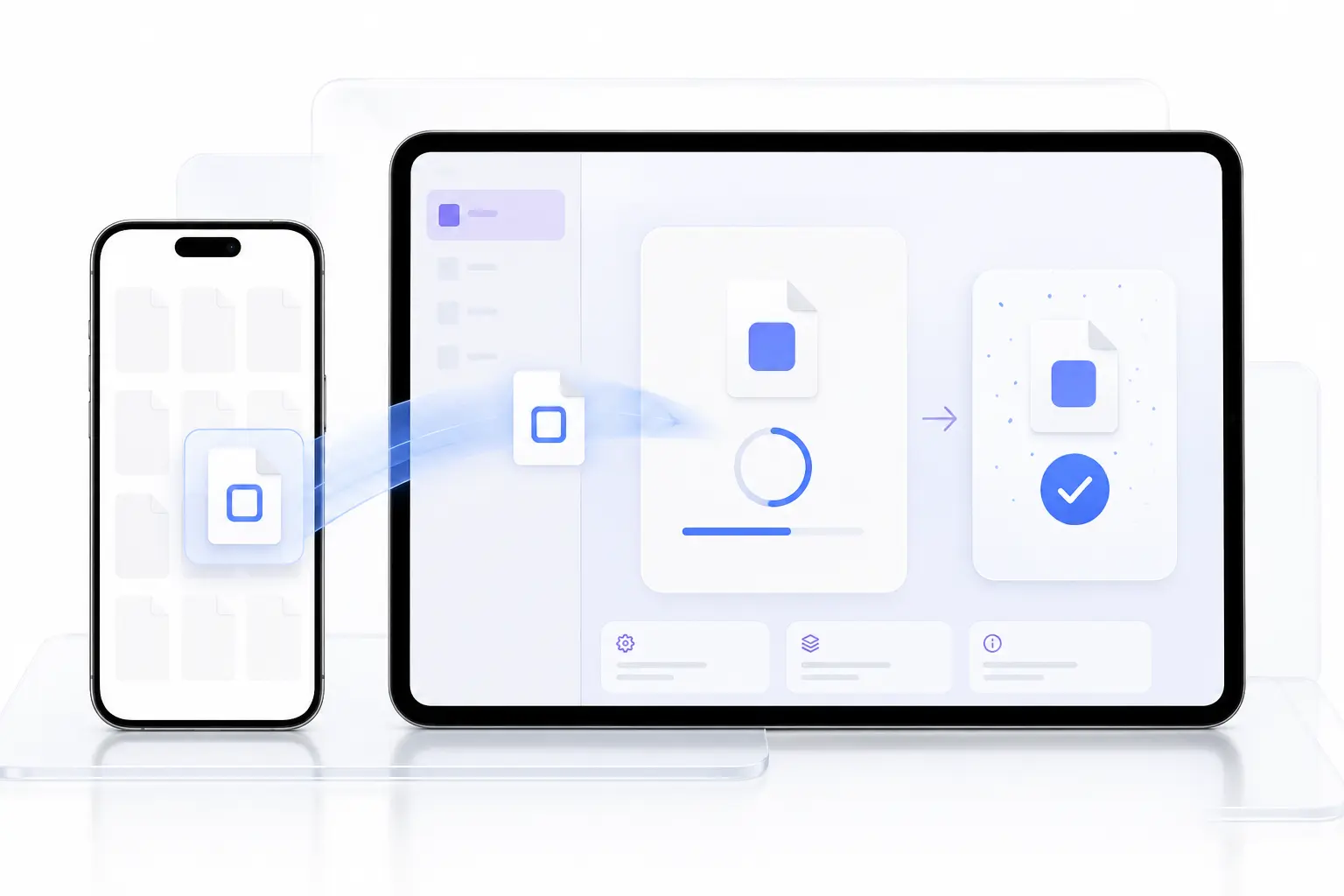
The right method depends on your computer, how often you install apps, and whether you are testing your own development build.
| Method | Computer needed | Best for | Typical free-account validity | Difficulty |
|---|---|---|---|---|
| Sideloadly | Windows or Mac | Installing an individual IPA | 7 days | Easy |
| AltStore Classic | Windows or Mac for setup | Installing and refreshing from the device | 7 days | Easy–medium |
| Xcode | Mac | Developers testing their own apps | Account-dependent | Advanced |
| Apple Configurator | Mac | Properly prepared organizational apps | Profile-dependent | Advanced |
| TestFlight | No local IPA import | Official beta testing | Managed by TestFlight | Easy |
| MDM or enterprise deployment | Administrator-managed | Internal business or school apps | Certificate-dependent | Administrator |
Choose Sideloadly if…
Use Sideloadly when you want a straightforward way to sign and install one IPA from a Windows PC or Mac.
It is usually the simpler choice when:
- The IPA is already saved on your computer.
- You are comfortable connecting the device by USB.
- You do not need an on-device app catalog.
- You want optional automatic refreshing while the computer is available.
Choose AltStore if…
Use AltStore Classic when you want to import IPA files from the Files app and manage them directly on your iPhone or iPad.
It is a useful choice when:
- You regularly sideload apps.
- You want to view app expiration dates.
- You want to refresh apps over the same Wi-Fi network.
- You want to manage active and inactive apps in one place.
AltStore Classic still requires AltServer on a Windows PC or Mac for its initial setup and normal refreshing process.
Choose Xcode if…
Use Xcode when you are developing or testing your own application on a Mac. Xcode gives developers more direct control over signing, bundle identifiers, capabilities, logs, and connected devices.
It is not the simplest option for a beginner who only has a finished IPA file.
Use TestFlight, MDM, or enterprise distribution if…
Use TestFlight when a developer has invited you to test an official beta. TestFlight manages the installation and beta expiration process, but it does not allow you to choose and import any IPA from Files.
MDM and enterprise distribution are intended for authorized schools, businesses, and other eligible organizations. Apple’s Enterprise Program is for proprietary internal apps—not public distribution of third-party apps.
Methods we do not recommend
Avoid installing apps through services that do not clearly identify the signer, certificate source, privacy policy, or app developer.
Be especially cautious with:
- Shared or leaked enterprise certificates
- Unknown web-based signing services
- Configuration profiles from unidentified organizations
- “Permanent signing” claims with no technical explanation
- Pirated copies of paid apps
- Apps modified to unlock paid features
- Sites that require unrelated profiles or device-management access
- Services asking for an Apple Account password on an untrusted webpage
A secondary Apple Account does not make an unsafe service trustworthy. Check the signing tool and IPA source before entering any account information.
Before You Sideload an IPA
A few checks before installation can prevent data loss, expired-app surprises, and many common signing errors.
Check whether the IPA source is trustworthy
The safest IPA is one you built yourself or downloaded directly from the original developer.
Before installing, check:
- The developer’s official website or repository
- The app name and version
- The expected filename and file size
- The supported iOS or iPadOS version
- The developer’s release notes
- A checksum when the developer provides one
- Reports of unexpected permissions or modified behavior
Do not assume a file is safe because its name and icon look familiar. An IPA can be repackaged while keeping the original branding.
Confirm the original developer
Look for a link from the developer’s official website to the download or release page. A random file-hosting link shared by another website is weaker evidence.
Check the version and bundle identifier
An unexpected bundle identifier may mean the app was modified or re-signed. Some signing tools deliberately create a unique identifier to avoid conflicts, so a changed identifier is not automatically malicious. It should still be explained.
Scan the file and verify its checksum
If the developer publishes a SHA-256 checksum, compare it with the downloaded file. A matching checksum confirms that your copy matches the file the developer published.
A malware scan can provide another signal, but no scanner can guarantee that an IPA is harmless.
Avoid unexplained permissions
A photo editor may reasonably request access to Photos. A basic calculator asking for Contacts, Microphone, Location, and Local Network access deserves more scrutiny.
Back up important app and device data
Back up important device data before installing unfamiliar software. If you are updating a sideloaded app, also check whether the app supports:
- iCloud synchronization
- Account-based synchronization
- Exporting data to Files
- A built-in backup option
- Local backup through the developer’s instructions
Deleting an app normally deletes its locally stored data. Reinstalling an IPA later may not restore that information.
Check storage and compatibility
Confirm that both the computer and device have enough free space. Signing tools may need temporary space to unpack and rebuild an IPA, so the computer may require more free space than the IPA’s displayed size.
Also check:
- Minimum iOS or iPadOS version
- iPhone-only or iPad-compatible support
- 64-bit architecture support
- Device-specific restrictions
- Required app capabilities
- Whether the IPA is encrypted or properly prepared for sideloading
Decide which Apple Account to use
Use an account you control. Only enter its details into software you have downloaded from the tool’s official website and reviewed carefully.
When two-factor authentication is enabled, Apple may request a verification code. The exact sign-in process depends on the signing tool and account type.
Understand free Apple Account limits
According to the current Sideloadly and AltStore documentation, a free Apple Account generally has these limits:
- Sideloaded apps remain valid for seven days.
- Up to three sideloaded apps can be active on one device.
- A limited number of App IDs can be created during a seven-day period.
- Apps must be refreshed or signed again before or after expiration.
A paid Apple Developer membership can provide longer signing validity and different limits, but it is not required for the basic methods in this guide.
Method 1: How to Sideload an IPA With Sideloadly

Sideloadly signs the selected IPA and installs it on a connected iPhone or iPad. It is available for Windows and macOS.
What you need
Prepare:
- The latest Sideloadly installer from its official website
- The IPA saved on your computer
- A compatible USB cable
- Your Apple Account
- A connected iPhone or iPad
- An internet connection
Install Sideloadly on Windows
Download Sideloadly from its official website
Download the Windows installer from the official Sideloadly website. Avoid repackaged installers from unrelated download portals.
Complete the normal Windows installation and open Sideloadly.
Install the required Apple device components
Sideloadly needs the Apple device components that allow Windows to communicate with an iPhone or iPad.
If the device is not detected, Sideloadly currently recommends reinstalling the web versions of iTunes and iCloud linked from its official instructions, restarting Windows, and then reconnecting the device.
Connect and trust the iPhone or iPad
- Unlock the iPhone or iPad.
- Connect it to the computer using USB.
- Tap Trust if “Trust This Computer?” appears.
- Enter the device passcode.
- Open iTunes if needed and confirm that the device appears.
- Return to Sideloadly.
Your device should appear in Sideloadly’s device selector.
Install Sideloadly on a Mac
Download and open the application
Download Sideloadly from its official website and move it to the Applications folder if instructed.
If macOS blocks the first launch, verify that the copy came from the official source. Then use the macOS Privacy & Security controls to approve it only if you trust the download.
Connect and approve the device
- Unlock the iPhone or iPad.
- Connect it to the Mac.
- Open Finder and select the device.
- Choose Trust if the Mac requests it.
- Confirm the request on the iPhone or iPad.
- Return to Sideloadly and select the device.
Some macOS configurations may require additional Sideloadly setup. Follow the current instructions shown by the official installer rather than an old screenshot from another site.
Sign and install the IPA
- Open Sideloadly.
- Select your connected iPhone or iPad.
- Drag the IPA into the Sideloadly window, or select it using the IPA button.
- Confirm that the correct file and device are selected.
- Enter the Apple Account requested by the tool.
- Review any advanced options before changing them.
- Click Start.
- Complete Apple’s verification request if one appears.
- Wait for Sideloadly to finish signing and installing the app.
- Check the Home Screen or App Library for the new app.
Do not disconnect the device while the app is being signed or installed.
Enable Developer Mode if requested
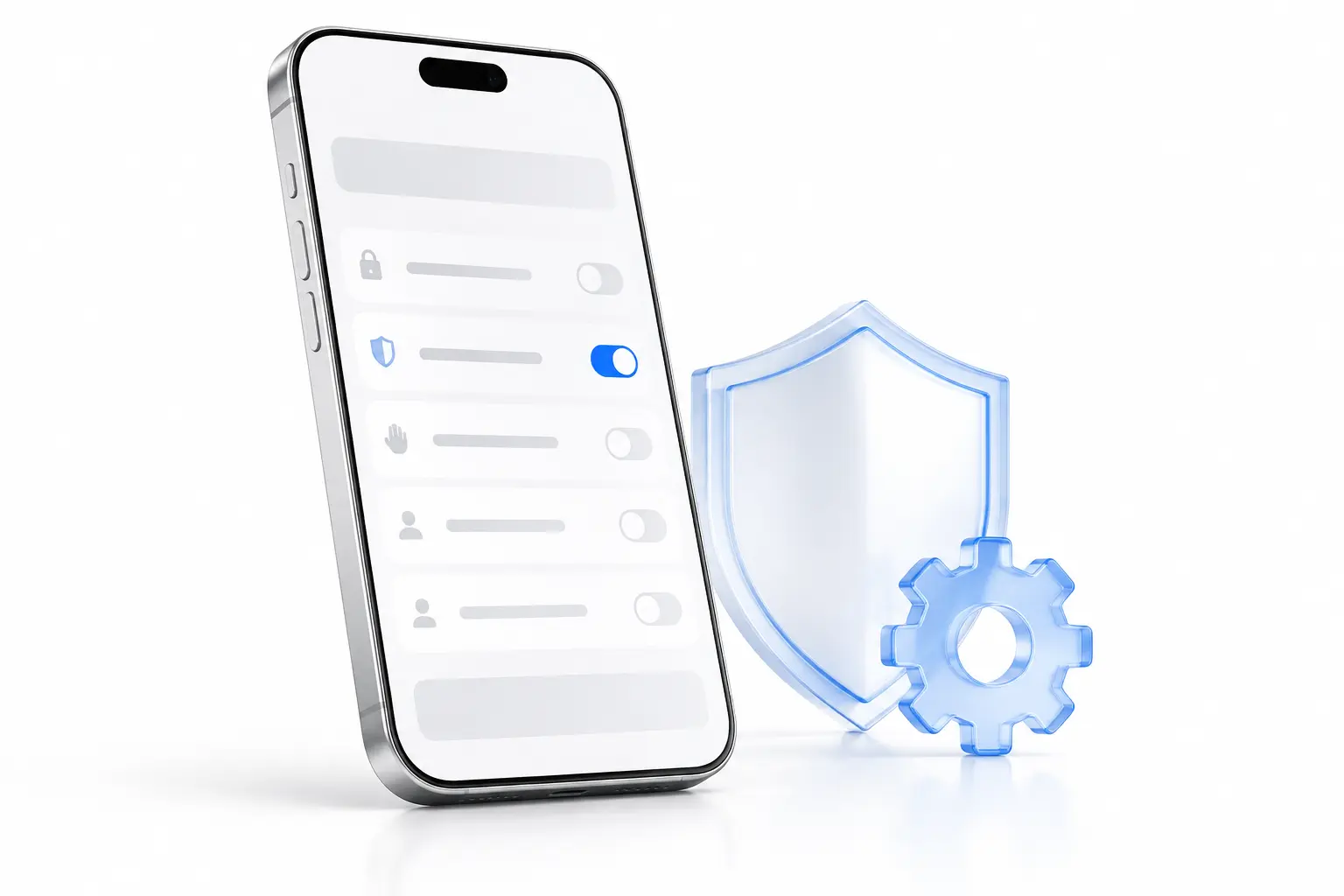
Modern iOS and iPadOS versions require Developer Mode for locally installed development apps. The option is normally found under Settings → Privacy & Security → Developer Mode.
Open Privacy & Security
Open Settings, select Privacy & Security, and scroll down to Developer Mode.
Turn on Developer Mode
Turn on the switch and approve the restart request.
Restart and confirm
After the device restarts:
- Unlock the device.
- Confirm that you want to enable Developer Mode.
- Enter the device passcode.
- Return to the installed app.
Developer Mode increases access to development features. Leave it enabled only when you need to test or run locally installed development apps.
Trust the developer profile if required
If you see an “Untrusted Developer” message:
- Open Settings.
- Go to General.
- Open VPN & Device Management.
- Find the developer app section associated with the Apple Account used for signing.
- Select it.
- Review the information.
- Tap Trust if it matches the app you intentionally installed.
The labels may vary slightly by iOS or iPadOS version.
Confirm that the app works
Open the app and check:
- It reaches its normal first screen.
- It does not close immediately.
- Its core features load.
- Its permissions match its purpose.
- It does not request an unknown profile.
- It does not redirect you to unrelated websites.
A successful installation does not prove that every app feature will work. Push notifications, iCloud containers, Game Center, Sign in with Apple, VPN functions, and other protected capabilities can depend on specific entitlements.
Refresh or re-sign the app
An app signed with a free Apple Account normally expires after seven days. Refresh it before expiration to reduce the risk of losing access.
Sideloadly can enroll supported apps for automatic refreshing. Its daemon looks for the connected device over USB or Wi-Fi and attempts to refresh apps that are near expiration.
Keep in mind:
- The computer must be available.
- The Sideloadly daemon must be running.
- USB or Wi-Fi device detection must work.
- The same Apple Account and bundle identifier help preserve an existing installation.
- Important app data should still be backed up.
Set up Wi-Fi sideloading

After the initial USB setup, supported configurations can detect and refresh the device over Wi-Fi.
For reliable Wi-Fi detection:
- Keep the computer and device on the same network.
- Enable Wi-Fi syncing for the device in Finder or iTunes when required.
- Leave the Sideloadly daemon running.
- Prevent firewalls from blocking the local connection.
- Connect by USB again if Wi-Fi detection stops working.
Method 2: How to Install an IPA With AltStore
AltStore Classic places an app manager on your iPhone or iPad. You can then select IPA files from Files and monitor their signing status.
Install AltServer on Windows
Install the required Apple software
Follow AltStore’s current Windows installation instructions. AltServer may require Apple components that allow it to authenticate the account and communicate with the device.
Use the versions linked by AltStore’s official documentation. If the guide specifies a particular iTunes or iCloud package, do not substitute another version without checking compatibility.
Connect the device
- Connect the unlocked iPhone or iPad by USB.
- Tap Trust on the device.
- Enter the device passcode.
- Confirm that Windows can see the device.
- Open AltServer.
Install AltStore on the device
Use the AltServer icon in the Windows notification area:
- Select Install AltStore.
- Choose the connected iPhone or iPad.
- Enter the requested Apple Account information.
- Complete two-factor verification if required.
- Wait for AltStore to appear on the device.
Install AltServer on a Mac
- Download AltServer from the official AltStore website.
- Move it to Applications if instructed.
- Open AltServer.
- Connect the iPhone or iPad.
- Trust the device in Finder.
- Use the AltServer menu to install AltStore on the selected device.
- Follow any additional macOS setup shown by the current AltServer version.
Older tutorials may show setup steps that no longer match current macOS releases. Use AltStore’s current documentation when its instructions differ.
Complete AltStore setup on the device
If required:
- Enable Developer Mode under Settings → Privacy & Security.
- Open Settings → General → VPN & Device Management.
- Select the developer entry associated with the account used by AltServer.
- Trust it after confirming that it matches your installation.
- Open AltStore.
Import and install an IPA

- Download or transfer the trusted IPA to the Files app.
- Open AltStore.
- Select My Apps.
- Tap the plus button.
- Browse to the IPA in Files.
- Select the file.
- Keep AltStore open while the app is signed.
- Wait for installation to finish.
- Open the app from the Home Screen or App Library.
If AltStore cannot reach AltServer, confirm that the computer and device are on the same Wi-Fi network. Connecting by USB can also help diagnose the problem.
Refresh sideloaded apps with AltStore
AltStore displays the remaining time for active apps. Refresh them before the seven-day period ends.
Refresh on the same Wi-Fi network
Keep AltServer running on the computer and connect both devices to the same local network. Open AltStore and refresh the apps from My Apps.
Allow background refresh where supported
Enable Background App Refresh for AltStore if the feature is available. Background refreshing is useful, but it should not be your only plan. Check expiration dates manually when an app is important.
When fewer than 24 hours remain
Open AltStore while AltServer is available and refresh the app manually. If the refresh fails:
- Connect the device by USB.
- Confirm that AltServer is running.
- Check the Wi-Fi network.
- Verify the Apple Account session.
- Restart AltServer and AltStore.
- Review the error message before reinstalling.
Manage active and inactive apps
AltStore can show which sideloaded apps are active and how long their signatures remain valid. Depending on the AltStore version and setup, you may be able to deactivate an app to free an active-app slot while preserving its data.
Confirm the behavior before depending on it for important data. A normal iOS deletion removes the app’s local data.
Other Legitimate Ways to Install or Test an IPA
Sideloadly and AltStore are not the only options. Developers and organizations may need Apple’s own deployment tools.
Install a development build with Xcode
Xcode is the most appropriate option when you have the source project and are testing your own app.
A developer can:
- Select a development team.
- Configure the bundle identifier.
- Manage signing.
- Register a connected device.
- Build the app for that device.
- View installation and crash logs.
- Configure supported capabilities.
Xcode is a development environment, not a general consumer IPA library.
Add an organizational app with Apple Configurator
Apple Configurator for Mac can add properly prepared proprietary in-house IPA files to supported devices and Blueprints.
Connect and select the device
Connect the device, open Apple Configurator, and select the intended device or Blueprint.
Choose Add Apps
Use Add → Apps, Actions → Add → Apps, or drag the approved app onto the selected device.
Select the IPA
Choose Choose from my Mac, locate the .ipa file, and select Add Apps.
Apple Configurator does not turn any unsigned or incorrectly provisioned IPA into an installable application. The app still needs the appropriate signing and distribution setup.
Use TestFlight for beta testing
TestFlight is generally the simplest option when an app developer has invited you to a beta.
The developer controls:
- Which build is available
- Who may test it
- The build’s testing period
- Release notes
- Feedback collection
- Future beta updates
You cannot normally select an unrelated IPA from Files and import it into TestFlight.
Use authorized MDM or enterprise distribution
Organizations can distribute eligible internal apps through device management and approved enterprise workflows.
These methods are intended for:
- A company’s internal workforce
- Managed school devices
- Approved proprietary business apps
- Registered testing devices
- Organization-controlled deployment
Do not trust a public download site simply because it uses an “enterprise” certificate. Apple’s enterprise distribution program is not intended to operate as a public third-party app store.
Can you install an IPA without a computer?
Sometimes, but it depends on the distribution method. It is not as simple or reliable as many “no computer” headlines suggest.
What is genuinely possible?
A developer can distribute an authorized build through TestFlight, MDM, eligible organizational distribution, or Apple-supported alternative distribution in an eligible region.
Some third-party on-device signers also exist, but their installation process, certificate source, privacy practices, and reliability vary.
Why are direct-install certificates often revoked?
A publicly shared certificate may be used outside its intended purpose. If the certificate becomes invalid or is revoked, apps signed with it can stop installing or opening.
A “no revoke” label does not guarantee future access.
U.S. users and regional alternative distribution
As of this review, Apple’s regulated alternative app distribution is available in Brazil, Japan, and European Union countries or regions. It is not generally available to users based in the United States.
A U.S. user should not confuse Apple’s regional alternative distribution with developer signing through Sideloadly, AltStore, or Xcode.
How IPA Signing Works
You do not need to become an iOS developer to follow the tutorials, but understanding four terms makes installation errors much easier to solve.
Certificate
A signing certificate identifies the developer or account that signed the app. If the certificate expires or becomes invalid, iOS may refuse to install or open the app.
Provisioning profile
The provisioning profile connects the app’s identifier, certificate, permitted devices, and approved capabilities.
A profile created for the wrong device or distribution method can cause an otherwise valid IPA to fail.
App ID and bundle identifier
Every iOS app has a bundle identifier, such as com.developer.appname. It distinguishes that app from other apps.
Changing the identifier can:
- Allow two variants to exist separately
- Break access to existing app data
- Affect Game Center
- Affect push notifications
- Affect iCloud containers
- Prevent an update from replacing the old installation
Registered device UDID
A UDID uniquely identifies an Apple device for development and certain ad hoc distribution workflows. When a distribution method requires registered devices, an unlisted device cannot run the build.
Entitlements and app capabilities
Entitlements give an app access to protected capabilities. These can include:
- Push notifications
- App Groups
- iCloud
- HealthKit
- Sign in with Apple
- Network extensions
- VPN services
- Associated domains
- Keychain groups
Re-signing cannot automatically preserve every original entitlement. This is why an app can install successfully while one of its features does not work.
Free account versus paid developer membership
A free account is suitable for basic personal testing, but it has shorter validity and stricter limits. A paid developer membership can provide longer signing validity and broader development capabilities.
Paying does not make an unsafe IPA safe. It only changes the signing account’s capabilities and limits.
Why a valid IPA can still fail
Installation can fail because of:
- An expired certificate
- An incompatible provisioning profile
- Unsupported device architecture
- An unsupported iOS version
- A damaged IPA
- Missing required entitlements
- A conflicting bundle identifier
- A supervised-device restriction
- Incorrect computer or device time
- Insufficient storage
iPhone and iPad Installation Differences
The signing process is broadly similar, but app compatibility and interface behavior can differ.
Is the installation process the same?
Yes, for most signing tools. You still select the device, sign the IPA, enable Developer Mode when required, and trust the developer entry when prompted.
The main differences appear after installation.
iPad-compatible and iPad-only apps
An IPA must include support for the intended device family. An app built only for iPhone may run in a compatibility view on some iPads, while an iPad-only app will not normally install on an iPhone.
iPhone apps running on iPad
An iPhone app on iPad may have:
- A scaled interface
- Limited landscape support
- Large unused screen areas
- Keyboard or pointer issues
- Unsupported multitasking
- Missing external-display behavior
Installation success does not guarantee an iPad-optimized experience.
Device architecture and model restrictions
Older IPAs may contain code that does not support newer device architectures. Some builds also include a limited supported-device list.
Do not bypass a device limitation unless the developer confirms that the app is compatible. Removing a declared restriction cannot repair missing code or unsupported hardware behavior.
Apple silicon Mac compatibility is separate
Some iPhone and iPad apps can run on Apple silicon Macs, but this is separate from installing an IPA on an iPhone or iPad. Mac support depends on the app, its architecture, its permissions, and the developer’s distribution choices.
How to Check an IPA Before Installing It
No quick test can guarantee that an IPA is safe, but you can reduce unnecessary risk.
Verify the source and developer history
Prefer the original developer’s:
- Official website
- Verified repository
- Release page
- TestFlight invitation
- Documented distribution channel
Check whether the developer publishes updates, responds to security reports, and explains requested permissions.
Compare permissions with the app’s purpose
When the app first opens, do not approve every permission automatically. Ask whether the permission is needed for the feature you are using.
You can change permissions later under Settings → Privacy & Security or the app’s individual Settings page.
Check whether the IPA has been modified
A modified app may behave differently from the official version. Warning signs include:
- Paid features advertised as “unlocked”
- Removed advertising without developer authorization
- No source or change log
- Unexplained injected libraries
- A version number that does not match the developer’s release
- Requests for an unrelated account, profile, VPN, or certificate
Look for suspicious configuration profiles
An ordinary app should not automatically need full device management.
Before installing a configuration profile, check:
- The organization name
- What the profile can control
- Whether it installs certificates
- Whether it configures a VPN
- Whether it enrolls the device in management
- How to remove it
Do not install a profile when its purpose is unclear.
Test nonessential apps before entering personal information
Open the app and inspect its basic behavior before signing in with an important account. Avoid entering banking, health, work, or password-manager information into an app whose origin you cannot confirm.
Review access after installation
Location, Photos, Contacts, Camera, and Microphone
Open Settings → Privacy & Security and review which permissions the app has requested. Use limited access when it is enough for the feature.
Local Network and Bluetooth
Local Network access lets an app discover or communicate with devices on your network. Bluetooth access can reveal or connect to nearby devices. Deny these permissions when they are unrelated to the app.
Background App Refresh
Disable background activity for apps that do not need it. This can reduce battery use and unnecessary background communication.
App Privacy Report
Apple’s App Privacy Report can show how often apps access certain data and sensors, along with network domains they contact.
To use it:
- Open Settings.
- Select Privacy & Security.
- Open App Privacy Report.
- Turn it on.
- Use the app normally.
- Return later to review its activity.
App Privacy Report starts collecting information after it is enabled.
IPA Installation Troubleshooting

Start with the exact message shown by your device or signing tool. Avoid deleting the app until you have backed up any data you need.
| Error or symptom | Likely cause | First check |
|---|---|---|
| Unable to Install App | Signing, compatibility, storage, or network problem | Read the installer log |
| Integrity could not be verified | Invalid signature or provisioning | Sign the IPA again |
| Untrusted Developer | Developer entry not trusted | VPN & Device Management |
| App closes immediately | Incompatible code or entitlement | Confirm IPA compatibility |
| Device not detected | USB, trust, or Apple driver issue | Reconnect and tap Trust |
| App stopped opening | Signature expired or certificate revoked | Check signing date |
| Three-app limit | Free account limit reached | Remove or deactivate an app |
| Incorrect architecture | IPA does not support the processor | Obtain a compatible build |
“Unable to Install App”
Likely causes
This message can appear because of:
- An invalid or expired signature
- Insufficient device storage
- An incompatible build
- A duplicate or conflicting application
- A network verification problem
- Device-management restrictions
Fixes in order
- Read the complete error in Sideloadly, AltStore, Xcode, or Configurator.
- Restart the iPhone or iPad.
- Confirm automatic date and time are correct.
- Check storage on the device and computer.
- Verify the IPA supports the installed OS and device.
- Sign the IPA again.
- Remove an older conflicting version only after backing up its data.
- Download a fresh copy from the original developer.
“This App Cannot Be Installed Because Its Integrity Could Not Be Verified”
This normally points to a signature, certificate, or provisioning problem—not a damaged screen or general iPhone hardware issue.
Expired or revoked certificate
Sign the app again with a valid account or obtain a newly signed build from the authorized developer.
Incorrect provisioning profile
Confirm that the app was prepared for the intended distribution method and device.
Device not included
For an ad hoc build, confirm that the device UDID is included in the provisioning profile. Rebuilding the same IPA without updating its profile will not fix the problem.
“Untrusted Developer”
If you intentionally installed the app with a trusted signing tool:
- Open Settings → General → VPN & Device Management.
- Select the developer entry associated with your signing account.
- Confirm that it matches the expected account.
- Tap Trust.
- Reopen the app.
Do not trust an unknown organization simply to remove the warning.
Developer Mode does not appear
Try these checks:
- Confirm that the device is running a version that supports Developer Mode.
- Connect it to the computer.
- Attempt the installation again.
- Restart the device.
- Check Settings → Privacy & Security.
- Update the signing tool.
- Confirm that Screen Time or organizational restrictions are not hiding the setting.
The iPhone or iPad is not detected
Cable and USB checks
- Unlock the device.
- Use a cable that supports data, not only charging.
- Try another USB port.
- Avoid an unreliable hub.
- Restart the device and computer.
Trust This Computer
Reconnect the device and accept the trust request. On a Mac, open Finder and confirm that the device appears. On Windows, confirm that iTunes or the required Apple device software can see it.
Windows Apple-component problems
If Sideloadly shows no device, follow its current troubleshooting instructions for reinstalling the supported iTunes and iCloud components. Restart Windows after installation.
The app installs but closes immediately
Possible causes include:
- Unsupported iOS or iPadOS version
- Incorrect processor architecture
- Missing entitlements
- Jailbreak-only injected code
- An encrypted or improperly prepared IPA
- A damaged framework
- Anti-tampering protection
- A conflicting app container
Obtain a clean, compatible build from the original developer. Repeating the same installation rarely fixes an incompatible binary.
The app worked yesterday but no longer opens
The signing period may have ended, or the certificate may no longer be valid.
Try refreshing the app through the original signer. Use the same Apple Account and bundle identifier when possible. Back up data before deleting the old app.
Maximum number of apps reached
Free accounts are normally limited to three active sideloaded apps.
Remove or deactivate an app you no longer need, then try again. AltStore itself may count toward the active-app limit.
Maximum App ID limit reached
Free accounts can create only a limited number of App IDs during a seven-day period.
Deleting an app may not immediately remove its registered App ID. Wait for the indicated period to pass instead of repeatedly generating new bundle identifiers.
Incorrect architecture or unsupported device
An architecture error means the IPA does not contain compatible code for the device. Changing the filename, certificate, or profile cannot add the missing architecture.
Obtain a build created for your device.
Duplicate bundle identifier
An App Store app and a sideloaded version may conflict when they use the same bundle identifier.
Possible solutions include:
- Updating the existing sideloaded app with the same signer
- Removing the conflicting version after backing up its data
- Using a developer-approved alternate bundle identifier
Changing the identifier can break app data, notifications, Game Center, iCloud, and other services.
The IPA is invalid, damaged, or incomplete
Download it again from the original source. Do not use a file that was partially downloaded or incorrectly renamed.
An IPA is more than a ZIP file with a different extension. Renaming a random archive to .ipa does not create a valid iOS application.
An existing App Store version conflicts with the IPA
Back up the App Store app’s data before making changes. A sideloaded version may not be able to access the original app’s container, purchases, subscriptions, iCloud data, or keychain items.
App data disappeared after reinstalling
Deleting the app normally removes local data. Reinstalling with a different bundle identifier also creates a separate app container.
Check:
- The app’s cloud account
- iCloud or Game Center synchronization
- A previous Files export
- A device backup
- The developer’s recovery instructions
How to Update, Refresh, and Remove a Sideloaded App
Refresh without losing app data
Refresh through the same signing tool before the signature expires. When possible, use:
- The same Apple Account
- The same bundle identifier
- The same installed app
- A compatible IPA version
A refresh updates the signature. It should not be confused with deleting and reinstalling the app.
Install a newer IPA over the existing version
A newer build may replace the installed version when its bundle identifier and signing setup are compatible.
Back up first. Then use the original signer to install the newer IPA over the existing app.
When an update requires deleting the old app
Deletion may be necessary when:
- The bundle identifier changed
- The existing app came from another distribution method
- The signature is incompatible
- The installed build is damaged
- The developer specifically requires a clean installation
Deleting the old app can remove its local data.
Export or back up app data
Look for an in-app export option before updating. Save the export to Files or another location controlled by you.
Do not assume that an iPhone backup will restore every sideloaded app or its signing state.
Remove the app and unnecessary access
To remove the app:
- Touch and hold its icon.
- Select Remove App.
- Choose Delete App.
- Confirm deletion.
Then review:
- Settings → General → VPN & Device Management
- Settings → Privacy & Security
- Settings → General → iPhone Storage or iPad Storage
- Any VPN, certificate, or profile installed for the app
Remove only entries you recognize and no longer need.
Lesser-Known Sideloading Capabilities
Open an IPA from Files through a compatible signer
Saving an IPA in Files does not install it by itself. However, an on-device manager such as AltStore can let you choose that file and send it through the signing process.
View expiration before the app stops opening
AltStore and some signing tools display how much time remains. Checking this regularly is more reliable than waiting for the app to stop.
Deactivate an app to manage a free-account limit
Some AltStore configurations can deactivate an app while preserving its data, freeing an active-app slot. Confirm that your version supports this before relying on it.
Refresh over Wi-Fi
After the initial setup, AltStore or Sideloadly may refresh apps while the computer and device are on the same local network.
This still depends on:
- The computer being available
- The server or daemon running
- Local-network access
- A valid Apple Account session
- Successful device detection
Inspect app network activity
App Privacy Report can help identify the domains an app contacts. This is useful when a simple app communicates with unexpected services.
Network activity alone does not prove malicious behavior, but unexplained connections are worth investigating.
Keep two variants with different bundle identifiers
Advanced users may install separate variants by using different bundle identifiers. Each variant normally receives a separate app container.
This can affect:
- Stored data
- Notifications
- iCloud
- Keychain access
- Sign in with Apple
- URL schemes
- Game Center
Use installer logs to find the real cause
The message on the iPhone may be broad. The computer-side installer log often provides a more specific cause such as:
- Incorrect architecture
- Invalid provisioning
- App ID limit
- Device restriction
- Damaged framework
- Missing disk space
Record the complete error before closing the installer.
Understand why some features disappear after signing
A re-signed app may not retain every entitlement granted to the original developer. The app can open normally while protected features remain unavailable.
This is a signing limitation, not always an installation failure.
Frequently Asked Questions
What is an IPA file?
An IPA is an application package used for iPhone and iPad apps. It contains the app’s executable code, resources, settings, and metadata. To run on a device, it must be compatible and distributed with a signature and provisioning method accepted by iOS or iPadOS.
How do I sideload an IPA on an iPhone?
The simplest common method is to connect the iPhone to a Windows PC or Mac, open Sideloadly, select the IPA, sign it with an Apple Account, and install it. Enable Developer Mode and trust the developer entry if your device requests those steps.
What is the best IPA signer for beginners?
Sideloadly is generally simpler for installing one IPA from a computer. AltStore is useful for users who want to import files on the device, monitor expiration, and refresh multiple apps. The best option depends on your computer and maintenance preference.
Can I install an IPA without jailbreaking?
Yes. Properly signed development, ad hoc, enterprise, TestFlight, AltStore, and Sideloadly installations do not normally require a jailbreak.
Can I install an IPA without a computer?
Some authorized distribution methods work without a computer, including TestFlight and eligible organizational or regional distribution. Third-party “direct install” services vary in safety and reliability. U.S. users do not currently have general access to Apple’s regional alternative app-distribution system.
Is it legal to sideload an IPA?
Sideloading technology has legitimate uses, including development, testing, education, and installing software distributed by its developer. It does not give permission to copy paid apps, bypass licenses, or distribute copyrighted software. Use only apps you are authorized to install.
Is sideloading safe?
Sideloading is not automatically safe or unsafe. Risk depends on the IPA, its source, the signer, requested permissions, and any installed profiles. Apps from the App Store receive Apple’s full review process; independently distributed files may not receive the same review.
Why do free-signed apps expire after seven days?
A free Apple Account uses limited development provisioning intended for personal testing. Tools such as AltStore and Sideloadly work within that system, so the apps normally need to be refreshed or signed again every seven days.
How many IPA apps can I install for free?
Current AltStore and Sideloadly guidance indicates that a free Apple Account is normally limited to three active sideloaded apps on one device. The signer or app manager itself may use one of those slots.
Will sideloading erase my iPhone data?
Installing an IPA should not erase the entire device. However, deleting an existing app can remove that app’s local data, and installing a variant with a different bundle identifier creates a separate data container. Back up important information first.
Can I update iOS after sideloading an app?
Usually, but a system update can change compatibility, Developer Mode behavior, or signing-tool support. Back up important data and check the tool developer’s compatibility notes before installing a major iOS or iPadOS update.
Why does an IPA work on one device but not another?
The devices may use different operating-system versions, architectures, registered UDIDs, restrictions, or supported-device lists. The app may also be designed for only iPhone or iPad.
Can I install an iPhone IPA on an iPad?
Sometimes. The IPA must include support for the iPad or allow iPhone compatibility mode. An iPhone-only interface may not use the full iPad screen or support all iPad features.
Why are notifications or iCloud features not working?
Those features can require entitlements tied to the original developer’s certificate, App ID, and services. Re-signing an IPA with another account may not preserve them.
How do I remove an expired developer entry?
Delete the apps associated with the entry, then open Settings → General → VPN & Device Management and review the remaining developer or management items. Remove only profiles you recognize and no longer need.
How We Research and Maintain This Guide
IPA Library iOS checks platform requirements against official Apple documentation and compares tool-specific steps with the current documentation published by each installer.
We prioritize:
- Current setup instructions
- Clearly stated free-account limits
- Exact error messages
- Safe troubleshooting order
- U.S.-specific availability
- Original screenshots when available
- Visible review dates
- Corrections when platform behavior changes
This guide does not claim that every IPA works on every device. Compatibility ultimately depends on the app, its signing, its provisioning profile, its entitlements, and the device.
Primary references
- Apple: Enable Developer Mode
- Apple: Add apps with Apple Configurator
- Apple: Custom enterprise app trust
- Apple: Alternative app distribution availability
- Apple: App Privacy Report
- Sideloadly official guide
- Sideloadly FAQ
- AltStore official website
- AltStore Classic documentation
Ready to Install an IPA?
Choose the method that matches your computer and how often you plan to refresh the app.
For a simple computer-based installation:
Use the Sideloadly Guide
For on-device app management and refreshing:
Use the AltStore Guide
Looking for an app to install?
Browse the IPA Library
Install only apps you trust, keep important data backed up, and save this guide in case you need to refresh or troubleshoot the app later.