Seven popular tools compared
Windows, Mac, and on-device options
iOS 27 beta compatibility explained
No jailbreak required for most methods
Quick answer: Sideloadly is usually the simplest desktop IPA signer for Windows or Mac. AltStore offers a more complete app-management experience, while SideStore is useful if you want to refresh apps on the device after initial setup. ESign, Scarlet, and GBox depend heavily on the certificate used. TrollStore is only for specific older iOS versions and does not support iOS 27.
Last reviewed: August 20, 2026
Current iOS 27 status: Beta software
Important: No IPA signer can make an unsafe or unauthorized IPA trustworthy. Install only apps you created, are permitted to test, or have received from a source you can verify.
Quick IPA Signer Recommendations
There is no single best IPA signer for every iPhone and iPad. The right choice depends on what you are trying to install and how much setup you accept.
| Your priority | Signer to consider | Why |
|---|---|---|
| Simple Windows or Mac installation | Sideloadly | Direct desktop-based signing and installation |
| Complete app-management experience | AltStore Classic | App sources, expiration visibility, and refreshing |
| Refresh without returning to a computer | SideStore | On-device refresh after initial setup |
| Sign with your own certificate on-device | GBox or ESign | Certificate import and on-device signing |
| Direct-install and certificate options | Scarlet | Several installation workflows |
| Supported older iOS device | TrollStore | Permanent installation on specifically supported versions |
| Developing your own app | Xcode or TestFlight | Apple-supported development and beta testing |
These recommendations describe each tool’s general use. Compatibility with a specific iOS 27 beta build should be verified before depending on it.
Best IPA signer for beginners
Sideloadly is generally the easiest place to start if you have a Windows PC or Mac. You select an IPA, connect the device, sign the app with an Apple Account, and install it.
AltStore is another beginner-friendly option, especially if you want an app manager on the iPhone or iPad. Its initial setup takes longer, but it makes expiration and app refreshing easier to understand.
Best IPA signer for Windows
Consider:
- Sideloadly for the simplest direct installation.
- AltStore Classic for an app-manager workflow.
- SideStore if you want the computer mainly for initial setup.
Sideloadly and AltStore require compatible Apple device components on Windows. Follow the current official instructions rather than older tutorials that may reference outdated software packages.
Best IPA signer for Mac
Sideloadly and AltStore both support macOS. Developers working with their own projects should also consider Xcode because it provides proper development signing, device registration, logs, and capability management.
SideStore can be initialized from a Mac and then used for on-device refreshing.
Best signer for reduced computer dependence
SideStore is designed for users who want to refresh apps without repeatedly returning to a desktop computer. A computer is still required for initial setup, and its pairing file may need to be replaced after certain device updates, resets, or unexpected failures.
ESign, Scarlet, and GBox can also provide on-device signing, but they require a valid signing certificate or another supported installation method.
Best on-device IPA signer
There is no automatic winner between ESign, Scarlet, and GBox.
Choose based on:
- Where the app was downloaded.
- Whether its developer and source are identifiable.
- What type of certificate it accepts.
- How it handles provisioning profiles.
- Whether it receives current updates.
- Whether its iOS 27 support is documented.
- Whether you need app modification features.
- How much technical troubleshooting you can manage.
Best option for a TrollStore-compatible device
TrollStore is a strong option only when your exact device and iOS or iPadOS version are supported. Its official project supports specific versions from iOS 14 through iOS 17.0.
TrollStore is not an option for iOS 27.
Best IPA signer for iOS 27 beta
At the time of this review, iOS 27 is still beta software. That means compatibility can change between beta releases.
The safest selection approach is:
- Check the signer’s latest release notes.
- Look for the exact iOS 27 beta build.
- Confirm that installation and refreshing both work.
- Test a nonessential IPA first.
- Use a secondary device when possible.
- Back up important app data.
- Avoid tools making unsupported “works forever” claims.
GBox currently describes an unsigned build as adapted for iOS 27. This is a developer-stated compatibility claim, not independent proof that every IPA, certificate, entitlement, or device will work.
Sideloadly describes support for iOS 26 and later, but the current iOS 27 beta should still be verified on the exact build. AltStore and SideStore also need version-specific testing before being labeled fully compatible.
What Is an IPA Signer?
An IPA signer applies a digital signature and provisioning profile to an iPhone or iPad application package. These allow iOS or iPadOS to decide whether the app is permitted to install and run.
A signer normally connects:
- The application’s bundle identifier
- A signing certificate
- A provisioning profile
- Approved app capabilities
- The device or distribution method
- A validity period
An IPA can be a valid application file and still fail because its certificate, profile, entitlements, or device compatibility is incorrect.
IPA signer versus IPA installer
“IPA signer” and “IPA installer” are often used as if they mean the same thing. They are related, but they describe different parts of the process.
IPA signer
The signer applies or replaces the app’s digital signature. It may also create a new bundle identifier or adjust entitlements to fit the new provisioning profile.
IPA installer
The installer transfers the signed IPA to the iPhone or iPad and registers it with the operating system.
App manager or alternative store
An app manager can organize IPA files, app sources, updates, active apps, and expiration dates. AltStore and SideStore combine signing, installation, and management features.
Some on-device tools also include:
- File management
- Certificate importing
- Bundle identifier editing
- App icon changes
- Framework or tweak injection
- Source repositories
- Update tracking
Certificate versus provisioning profile
The certificate identifies the account or organization signing the app. The provisioning profile connects that certificate to an App ID, permitted capabilities, devices, and distribution method.
A certificate alone may not be enough. A mismatched or expired provisioning profile can prevent installation even when the certificate appears valid.
Why an unsigned IPA cannot normally be installed
iOS and iPadOS verify application code before allowing it to run. A raw unsigned IPA does not contain the trusted signing information required by the normal installation process.
A signer prepares the app for an accepted development, testing, organizational, or other supported distribution workflow.
Why signing does not make an IPA safe
Signing verifies the signing identity and allows the operating system to evaluate the app. It does not prove that the application:
- Came from its original developer
- Contains no modified code
- Respects user privacy
- Has no hidden tracking
- Is legally distributed
- Will keep data secure
- Will function correctly
Always evaluate the IPA source separately from the signer.
How to Choose an IPA Signer
Use the following process before downloading a tool or buying a certificate.
Step 1: Check your exact iOS or iPadOS version
Open Settings → General → About and record:
- Software version
- Device model
- Model number
- Available storage
Do not rely on a broad label such as “latest iOS.” A signer can work on one beta build and fail on the next.
Stable iOS release
Stable releases are normally easier to support because signer developers have more time to test them. Check the signer’s documentation and recent user reports for your exact version.
iOS beta release
Beta software can change:
- Developer Mode behavior
- Device-pairing communication
- Local VPN behavior
- Installation validation
- Debugging and JIT processes
- App registration
- Certificate verification
Do not upgrade a primary device to a beta only to access a signing feature.
Older exploit-compatible version
TrollStore and similar exploit-dependent tools work only on specific older versions. Updating the device can permanently remove eligibility.
Check the official compatibility list before updating or following an installation tutorial.
Step 2: Choose your computer workflow
Windows PC available
Sideloadly is usually the simplest direct option. AltStore is useful when you want app management, while SideStore uses the computer for its initial setup.
Mac available
Sideloadly, AltStore, SideStore setup, Apple Configurator, and Xcode are possible options. The right choice depends on whether you are installing a finished IPA or testing your own app.
Computer available only for initial setup
SideStore is specifically designed around this situation. You complete the initial pairing and installation with a computer, then perform normal app refreshing on the device.
The pairing file can expire or stop working, so occasional computer access may still be necessary.
No computer available
On-device signers such as ESign, Scarlet, or GBox may be possible when you already have a suitable certificate and provisioning profile.
Be careful with direct-install websites using public enterprise certificates. Those certificates may be revoked, and the website may not clearly explain who controls the certificate.
Step 3: Decide how you will sign apps
Free Apple Account
A free Apple Account can sign development apps, but current AltStore, SideStore, and Sideloadly documentation describes several limitations:
- Apps normally remain valid for seven days.
- Up to three sideloaded apps can be active.
- A limited number of App IDs can be registered during a seven-day period.
- Apps must be refreshed or re-signed regularly.
The signer or app manager may occupy one of the three available app slots.
Paid Apple Developer membership
A paid developer membership can provide longer signing validity and additional development capabilities. It is more appropriate for developers who need regular testing and app distribution tools.
A paid account does not make an untrusted IPA safe.
Personal P12 certificate and provisioning profile
Some on-device signers allow a user to import a P12 certificate and a mobile provisioning profile.
Before importing them, understand:
- Who created the certificate
- Whether it belongs to you
- Its expiration date
- Its permitted devices
- Its distribution type
- Which capabilities the profile allows
- Whether the certificate can be revoked
Treat certificate files and their passwords as sensitive information.
Shared or enterprise certificate
A shared certificate may work temporarily, but it can stop working without notice. A publicly available certificate may also have been obtained or used outside its intended organizational purpose.
Do not treat “currently signed” as a guarantee of future reliability.
Step 4: Decide how you will refresh apps
Automatic refresh through a computer
Sideloadly can run a background daemon that looks for the device over USB or Wi-Fi and attempts to refresh apps near expiration.
This is convenient when the computer is regularly online and connected to the same network.
Refresh through AltServer
AltStore refreshes apps while AltServer is available on the computer. Network access, firewall settings, and device detection must work correctly.
On-device refresh through a local VPN workflow
SideStore uses a local VPN and pairing process to communicate with the device and refresh apps.
This reduces computer dependence but adds:
- Pairing-file management
- Local VPN setup
- Potential anisette-server issues
- More technical troubleshooting
Certificate-based on-device signing
ESign, Scarlet, and GBox can sign on the device when supplied with compatible signing materials. The app remains dependent on that certificate’s validity.
TrollStore permanent installation
TrollStore does not use the normal seven-day personal-signing workflow on supported versions. This benefit comes from a CoreTrust vulnerability that does not exist on iOS 27.
Step 5: Count how many apps you need
A free-account setup may support only three active sideloaded apps, including the signer or app manager.
Before choosing a tool, list the apps you plan to use:
- Signer or app manager
- First sideloaded app
- Second sideloaded app
App extensions can also consume App IDs. An application with widgets, notification extensions, or watch components may use more registered identifiers than a simple app.
Step 6: Check advanced feature requirements
JIT for emulators and development tools
Just-in-time compilation can improve emulator and development-app performance. JIT support depends on:
- iOS or iPadOS version
- Signing tool
- Debugger method
- Pairing file
- Local network
- Device restart state
- App entitlements
Do not select a signer based on “JIT support” alone. Confirm that its current JIT method supports your exact OS version.
App extensions
If the IPA contains widgets, share extensions, keyboards, or notification services, verify that the signer handles extensions correctly.
Custom bundle identifiers
A custom bundle identifier can prevent a conflict or allow a second app variant. It can also break:
- Push notifications
- iCloud
- Game Center
- Keychain access
- Sign in with Apple
- URL schemes
- Existing app data
App sources and updates
AltStore and SideStore can use app-source feeds. This can simplify update discovery, but the source is responsible for the accuracy and safety of its listings.
Tweak or framework injection
ESign, Scarlet, GBox, and Sideloadly can support certain app-modification workflows. Injected frameworks may:
- Crash the app
- Break signing
- Add unexpected permissions
- Change network behavior
- Require jailbreak-only functions
- Violate the original developer’s license
Use modification features only with software you are authorized to change.
Apple TV or Apple silicon Mac support
Sideloadly includes Apple TV and Apple silicon Mac workflows. If those platforms matter, confirm the exact device, cable, wireless pairing, and app architecture before selecting it.
Step 7: Review privacy and source transparency
Before installing a signer, check:
- Is the official developer identifiable?
- Is there a maintained website or repository?
- Are release notes available?
- Is the privacy policy clear?
- Does the tool explain how Apple Account information is handled?
- Does it identify its certificate requirements?
- Does it install a configuration profile?
- Does it require device management?
- Can the app be removed cleanly?
- Are troubleshooting instructions available?
A polished website is not proof that a signing service is trustworthy.
Step 8: Check development and support activity
A signer may become unreliable after an iOS update if development has stopped.
Look for:
- Recent releases
- Current installation documentation
- Open and resolved issue reports
- Compatibility notes
- Active community support
- Security disclosures
- An identifiable official download
- Warnings about unsupported builds
IPA Signer Comparison
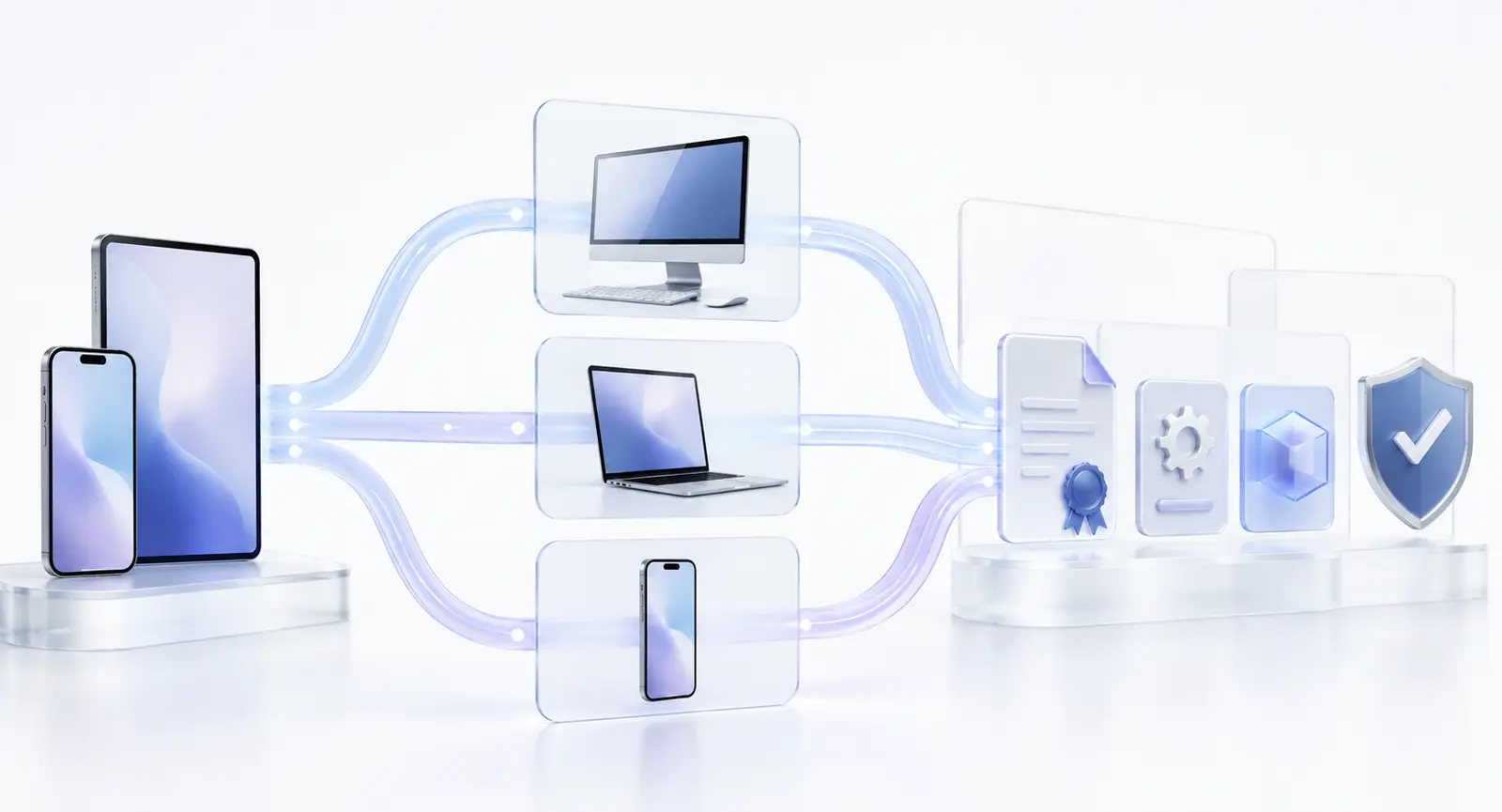
The table below compares the typical workflows. It does not guarantee compatibility with every device, IPA, certificate, or beta release.
| Tool | Main platform | Initial computer | Computer for normal refresh | Signing source | Free-account limits | iOS 27 status | Best for |
|---|---|---|---|---|---|---|---|
| Sideloadly | Windows/Mac | Yes | Yes, through USB or Wi-Fi | Apple Account | 7 days and 3 active apps | Exact beta verification needed | Simple desktop signing |
| AltStore Classic | iPhone/iPad with AltServer | Yes | Normally yes | Apple Account | 7 days and 3 active apps | Exact beta verification needed | App management |
| SideStore | iPhone/iPad | Yes | Usually no after setup | Apple Account | 7 days and 3 active apps | Exact beta verification needed | On-device refresh |
| ESign | iPhone/iPad | Depends on installation | No for normal on-device use | Imported certificate | Certificate-dependent | Unverified | Advanced certificate users |
| Scarlet | iPhone/iPad or computer-assisted | Method-dependent | Method-dependent | Apple Account or certificate | Method-dependent | Unverified | Multiple signing workflows |
| GBox | iPhone/iPad | Depends on installation | No for normal on-device use | Imported certificate | Certificate-dependent | Developer-stated adaptation | On-device certificate signing |
| TrollStore | Supported older iOS/iPadOS | Installation-dependent | No | CoreTrust-based method | No normal 7-day refresh | Not compatible | Specific older systems |
How compatibility labels are assigned
Confirmed
The signer has been tested on the exact OS build and device, including installation, launch, and refreshing where applicable.
Developer-stated
The tool developer or official website explicitly states support, but the result has not been independently verified for every relevant function.
Unverified
No sufficiently specific first-party evidence or complete test is available.
Not compatible
The tool’s official compatibility documentation excludes the operating-system version.
How to compare signers fairly
A useful comparison should evaluate:
- Exact OS compatibility
- Signing method
- Certificate source
- Setup difficulty
- Refresh reliability
- Computer dependence
- Source transparency
- Troubleshooting quality
- Development activity
- Advanced-feature support
A tool with more features is not automatically the best choice. Reliability and understandable requirements matter more for most users.
Sideloadly Review
What is Sideloadly?
Sideloadly is a desktop IPA signer and installer for Windows and macOS. It signs a selected IPA with a free or paid Apple Account and installs it on a connected device.
Who should choose Sideloadly?
Consider Sideloadly if:
- You have regular access to Windows or Mac.
- You want a simple drag-and-install process.
- You prefer not to manage certificate files manually.
- You can leave its refresh daemon running.
- You need Apple TV or Apple silicon Mac options.
Main Sideloadly advantages
- Straightforward desktop workflow
- Windows and macOS support
- Free Apple Account support
- Optional automatic refreshing
- USB and Wi-Fi device detection
- Advanced bundle and app options
- Apple TV support
- Apple silicon Mac installation support
Important Sideloadly limitations
- The computer remains part of automatic refreshing.
- Free-account apps normally expire after seven days.
- The three-active-app limit applies.
- Windows requires compatible Apple device components.
- App modifications can break protected features.
- A successful signature does not guarantee IPA compatibility.
Sideloadly and iOS 27
Current published compatibility
Sideloadly’s current website describes support for iOS 26 and later. This suggests an actively maintained compatibility target, but it should not be converted into an unconditional iOS 27 guarantee.
What should be verified?
Test:
- Device detection
- Developer Mode
- Signing completion
- App installation
- Launch after restart
- Automatic refresh
- Wi-Fi detection
- App extensions
- Entitlement-dependent features
Sideloadly verdict
Sideloadly is the strongest general recommendation for a beginner who wants a direct Windows or Mac workflow. For iOS 27 beta, verify the current tool release and exact beta build before depending on automatic refresh.
AltStore Classic Review
What is AltStore Classic?
AltStore Classic is an app manager for iPhone and iPad that works with AltServer on Windows or Mac. It signs apps with a personal development certificate and shows their expiration status.
Who should choose AltStore?
Consider AltStore if:
- You want an established app-management interface.
- You want to import IPA files from Files.
- You want app sources and update information.
- You prefer visible signature countdowns.
- Your computer is normally available for refresh.
Main AltStore advantages
- Recognizable development team
- Official installation documentation
- App-source support
- Visible expiration information
- Manual and background refresh options
- Permission-change information for supported sources
- JIT workflows for compatible versions
- Active-app management
Important AltStore limitations
- AltServer is required.
- The computer must normally be available for refreshing.
- Firewall or Wi-Fi problems can interrupt refresh.
- Free-account limits still apply.
- AltStore itself can occupy an active-app slot.
- Protected app features may not survive re-signing.
AltStore and iOS 27
What may continue to work?
AltStore uses Apple’s personal development-signing workflow, so its basic model may continue across iOS releases. This is not proof that every AltServer version, refresh function, JIT method, or app extension works on the current beta.
What should be tested?
Test installation, refresh, background communication, JIT, extensions, Windows or Mac pairing, and Developer Mode.
AltStore verdict
AltStore is a strong all-round choice for users who value app management and clear expiration information more than minimal setup.
SideStore Review
What is SideStore?
SideStore is a community-driven AltStore fork designed to install and refresh apps on the iPhone or iPad without using the computer after initial setup.
It uses a personal development certificate, a device-pairing file, and a local VPN workflow.
Who should choose SideStore?
Consider SideStore if:
- You want to refresh away from your computer.
- You can complete a more technical initial setup.
- You understand local VPN and pairing-file requirements.
- You can troubleshoot occasional pairing or anisette issues.
- You accept its public-beta status.
Main SideStore advantages
- Computer normally needed only for setup
- On-device app refreshing
- App-source support
- Open development
- Current documentation
- JIT options for supported OS versions
- Certificate import and export features in current releases
Important SideStore limitations
- It remains in public beta.
- The setup is more complicated than Sideloadly.
- A local VPN must operate correctly.
- The pairing file can expire.
- An iOS update or reset may require computer access.
- Free-account validity and app limits still apply.
- Server and authentication issues can interrupt signing.
SideStore and iOS 27
What should be verified?
Test:
- Initial installation
- Pairing-file creation
- Pairing-file placement
- Local VPN connection
- Sign-in
- App installation
- On-device refresh
- Refresh after restart
- JIT workflow
- Behavior after an iOS 27 update
SideStore verdict
SideStore is a good option for technically comfortable users who prioritize on-device refresh. It is not the simplest choice for someone who wants a quick first installation.
ESign Review
What is ESign?
ESign is commonly used as an on-device IPA signing and installation tool. It can import certificate files, sign IPAs, manage files, and modify selected app properties.
Who should consider ESign?
ESign is better suited to users who understand:
- P12 certificates
- Certificate passwords
- Provisioning profiles
- Bundle identifiers
- App entitlements
- Certificate expiration
- Revocation risk
Main ESign advantages
- On-device IPA signing
- Certificate importing
- File-management features
- Bundle identifier editing
- App name and icon controls
- Framework or library injection
- No computer needed during normal signing after setup
Important ESign limitations
- Reliability depends on the certificate.
- Public certificates may be revoked.
- Multiple unofficial downloads can make source verification difficult.
- App modification can break entitlements.
- Injected code can introduce privacy or stability risks.
- Support and documentation may vary by source.
ESign and iOS 27
What evidence is required?
Do not label ESign fully compatible only because its icon can be installed.
A complete iOS 27 test should confirm:
- ESign opens.
- A valid certificate imports.
- The IPA signs successfully.
- The signed app installs.
- The app launches after a restart.
- Its signature remains valid.
- Required extensions and capabilities work.
ESign verdict
ESign can be useful for informed users who control their certificate. It should not be the default recommendation for beginners who cannot verify the download source or signing materials.
Scarlet Review
What is Scarlet?
Scarlet is an IPA installation and management tool that has offered direct-install, computer-assisted, and certificate-import methods.
Its available features can include app sources, IPA importing, certificate management, and app modification.
Who should consider Scarlet?
Scarlet may suit users who understand the difference between:
- Direct installation with a shared certificate
- Personal Apple Account signing
- Imported developer certificates
- Computer-assisted signing
Main Scarlet advantages
- On-device interface
- Multiple installation approaches
- IPA importing
- Certificate management
- App-source support
- App customization features
Important Scarlet limitations
- Direct installation depends on certificate status.
- Shared certificates may be revoked.
- Identifying the authoritative download source can be difficult.
- Compatibility claims vary between websites.
- Injected tweaks can crash apps or change their behavior.
- “Signed” does not mean permanently reliable.
Scarlet and iOS 27
Installation is not full compatibility
A successful Scarlet installation proves only that Scarlet itself installed. It does not prove that every certificate, IPA, refresh method, entitlement, or injected component works on iOS 27.
Test the complete workflow before marking it compatible.
Scarlet verdict
Scarlet offers a convenient interface, but its reliability depends on installation method, certificate provenance, and download source. It requires more verification than a standard desktop signer.
GBox Review
What is GBox?
GBox is an on-device signing and testing tool that can import signing materials, re-sign IPA files, install apps, and modify selected application information.
Who should consider GBox?
GBox may suit users who:
- Have a valid certificate
- Want to sign on-device
- Understand provisioning profiles
- Need app customization
- Can verify the official GBox source
- Are testing iOS 27 compatibility
Main GBox advantages
- On-device signing
- IPA installation
- Certificate importing
- App-property customization
- File and application management
- An iOS 27-adapted build claimed by its website
Important GBox limitations
- A valid certificate is still required.
- Public certificates may stop working.
- “Adapted for iOS 27” does not guarantee every IPA works.
- Protected entitlements may fail after re-signing.
- Advanced app changes can create compatibility problems.
GBox and iOS 27
What the developer currently states
The GBox website currently presents an unsigned build as adapted for iOS 27.
This should be labeled developer-stated compatibility until an independent test covers the complete signing and installation process.
What should be tested independently?
Confirm that:
- GBox installs and launches.
- A valid certificate imports.
- A provisioning profile is recognized.
- An authorized test IPA signs.
- The signed IPA installs.
- The app opens after a restart.
- Refresh or re-signing works.
- Common extensions behave correctly.
- No unexpected profile or permission is installed.
GBox verdict
GBox is a relevant on-device iOS 27 candidate for users with valid signing materials. It should not be promoted as confirmed or permanent without build-specific testing.
TrollStore Review
What is TrollStore?
TrollStore is a permasigned IPA installer that uses a CoreTrust vulnerability on specific older iOS and iPadOS versions.
It is fundamentally different from a normal Apple Account signer.
Why is TrollStore different?
On supported systems, TrollStore can install apps without the ordinary seven-day personal-development expiration.
This ability depends on a specific operating-system vulnerability. It cannot be transferred to any iOS version simply by updating the TrollStore app.
Officially supported versions
The official TrollStore repository lists:
- iOS/iPadOS 14.0 beta 2 through 16.6.1
- iOS/iPadOS 16.7 RC
- iOS/iPadOS 17.0
Installation availability can still depend on device and installer method.
Important TrollStore limitations
- It requires a specifically supported OS version.
- Installation methods differ by device.
- Updating can remove eligibility.
- It is not a general solution for current iOS versions.
- Its vulnerability-based process is intended for experienced users.
TrollStore and iOS 27
Compatibility verdict
TrollStore does not support iOS 27.
Its official developer states that iOS 17.0.1 and later will not be supported unless another applicable CoreTrust bug is discovered.
TrollStore verdict
TrollStore remains valuable for supported older devices, but it should not appear as a current iOS 27 recommendation.
Which IPA Signer Should You Choose?
Choose Sideloadly when…
- You want the easiest desktop installation.
- You use Windows or Mac.
- You have regular computer access.
- You prefer automatic refresh through USB or Wi-Fi.
- You do not want to manage P12 certificates manually.
Choose AltStore when…
- You want an app manager on the device.
- You want to view expiration dates.
- You use app sources.
- Your computer is usually available.
- You want a documented, established workflow.
Choose SideStore when…
- You want to refresh apps away from your computer.
- You can handle a pairing file.
- You understand its local VPN requirement.
- You accept more setup and troubleshooting.
- You are comfortable using public-beta software.
Consider ESign, Scarlet, or GBox when…
- You understand certificate-based signing.
- You have a trusted certificate.
- You want to sign directly on the device.
- You need advanced app customization.
- You can verify the download source.
- You understand certificate-revocation risk.
Choose TrollStore only when…
Your exact device and installed iOS or iPadOS version appear in the official compatibility information.
Do not downgrade, erase, or modify a device based only on a third-party “TrollStore for all versions” page.
Use Xcode or TestFlight when…
You are developing your own app or testing an authorized beta.
Xcode provides the most appropriate environment for source-level development, signing, debugging, device logs, and entitlement configuration. TestFlight is usually easier for distributing beta builds to approved testers.
Is There a Best Free IPA Signer?
The best free choice depends on what inconvenience you prefer: regular computer access, more technical on-device refreshing, or certificate uncertainty.
What “free” actually includes
A free signer may still require:
- A computer
- An Apple Account
- Weekly refresh
- Local-network access
- Technical setup
- Limited active apps
- Troubleshooting after OS updates
Free does not mean unlimited or maintenance-free.
Seven-day signing limit
Apps signed through a free personal development account normally remain valid for seven days. Refreshing signs the app again before or after that period.
Three-active-app limit
Free signing normally allows three active sideloaded apps per device. AltStore or SideStore can occupy one slot.
App ID limit
A free account can register a limited number of App IDs during a seven-day period. Extensions may consume additional identifiers.
Deleting the app does not always make its App ID disappear immediately.
Why a free shared certificate may be less reliable
A shared certificate can be used by many people and may be revoked. You may have no control over:
- Who owns it
- How it was obtained
- What it signs
- When it expires
- Whether it will be replaced
- Who receives the certificate password
When a paid developer membership makes sense
A paid Apple Developer membership may make sense when you:
- Develop and test apps regularly
- Need longer signing validity
- Manage several test devices
- Need additional capabilities
- Want direct control of your development certificates
It should not be purchased only because a download page promises that every modified IPA will work.
When a third-party certificate is too risky
Avoid the certificate when:
- Ownership is hidden
- The seller promises “never revoked”
- No refund or replacement policy is explained
- It requires unexpected device management
- It is delivered through an unknown profile
- The certificate password is publicly shared
- The seller asks for unrelated Apple Account access
IPA Signer Safety Checklist
Use this checklist before installing a signer or importing a certificate.
Verify the official source
Start from the project’s official website, developer profile, or repository. Avoid search advertisements and copied download pages when possible.
Review release activity
Check whether recent releases match current operating-system versions. A tool that has not been updated for years should not be labeled an iOS 27 signer.
Understand Apple Account handling
Before entering an Apple Account:
- Read the tool’s explanation.
- Confirm you downloaded the official build.
- Avoid entering credentials into an unknown webpage.
- Review two-factor authentication requests.
- Stop if the sign-in request does not match the expected workflow.
Check certificate ownership
Know whether the certificate is:
- Your personal development certificate
- A paid developer certificate you control
- An ad hoc certificate
- An enterprise certificate
- A publicly shared certificate
Different certificates have different purposes and risks.
Avoid unknown configuration profiles
Review any profile before installation. Check whether it adds:
- Root certificates
- VPN settings
- Web filters
- Device management
- Restrictions
- Proxies
- Organization control
An IPA signer should not receive broad device-management control without a clear, legitimate reason.
Review app permissions
After installation, inspect:
- Photos
- Contacts
- Microphone
- Camera
- Location
- Bluetooth
- Local Network
- Background App Refresh
- Files access
Deny permissions unrelated to the app’s purpose.
Use App Privacy Report
Apple’s App Privacy Report can show data and sensor access along with contacted network domains.
Open Settings → Privacy & Security → App Privacy Report and enable it before testing an unfamiliar app.
Back up important data
Back up important app information before:
- Updating a sideloaded app
- Changing its bundle identifier
- Moving between signers
- Deleting an expired app
- Installing an iOS beta
- Replacing a certificate
Do not confuse validity with safety
A certificate that has not been revoked proves only that it is currently accepted for its signing workflow. It does not prove that the IPA is private, legal, secure, or unmodified.
Lesser-Known IPA Signer Capabilities
Advanced features can be useful, but they can also change app behavior.
Change a bundle identifier
Changing the bundle identifier creates a different app identity.
This can:
- Avoid a conflict
- Install a second variant
- Create a separate data container
- Break notification services
- Disconnect iCloud data
- Affect Game Center
- Affect keychain access
- Stop updates from replacing the old app
Record the original identifier before changing it.
Install multiple variants of one app
Two variants can coexist when they use different identifiers. Each variant normally keeps separate local data.
Do not expect purchases, account sessions, notifications, or cloud containers to transfer automatically.
Update over an existing installation
To preserve data, the new version normally needs:
- The same bundle identifier
- A compatible signing setup
- The same app container
- A suitable version number
- Compatible data storage
Back up first. If the signer changes the identifier automatically, the new build may install as a separate app.
Manage app extensions
An IPA may contain:
- Widgets
- Share extensions
- Notification extensions
- Keyboards
- Watch components
- App Clips
Each extension can require its own identifier and entitlements. A complex app can reach free-account limits faster than expected.
Review entitlements before signing
Advanced signers may display or alter entitlements. Removing an unsupported entitlement can allow signing to continue, but it can also disable the related feature.
Do not add an entitlement that the certificate and provisioning profile do not permit.
Import app-source feeds
AltStore, SideStore, and some other managers can read app-source feeds. Sources can provide:
- App listings
- Versions
- Release notes
- Download links
- Permission information
- Update alerts
Verify the source owner separately from the app manager.
Enable JIT
JIT is useful for certain emulators and development tools. Its availability changes frequently across iOS versions.
A signer claiming JIT support may still require:
- A pairing file
- A debugger
- A local VPN
- A computer
- A specific OS range
- Re-enabling after restart
View signature expiration
AltStore, SideStore, and desktop signers can help track expiration. Refresh before the remaining time reaches zero.
Refresh over Wi-Fi
Wi-Fi refresh requires reliable device discovery. The computer and iPhone or iPad may need to remain on the same network, with firewall access and Wi-Fi syncing enabled.
Replace a pairing file
SideStore uses a pairing file to communicate with the device. An update, reset, or unexpected pairing change can invalidate it.
Store pairing files securely. They contain device-specific trust information and should not be shared publicly.
Change the app name or icon
Some signers can change visible app information. This is cosmetic and does not add compatibility, security, or missing features.
Read signing logs
The signer’s complete error log can reveal:
- Invalid provisioning
- Certificate expiration
- App ID limits
- Architecture problems
- Missing storage
- Broken frameworks
- Unsupported entitlements
- Device restrictions
Copy the full error before closing the tool.
Common IPA Signer Problems
The signer does not detect the device
Likely cause
USB, trust, Apple device software, Finder, iTunes, firewall, or Wi-Fi pairing problem.
First safe fix
Unlock the device, reconnect it with a data-capable cable, tap Trust, and confirm that Finder or the supported Windows software can see it.
When to choose another signer
Choose an on-device workflow only if you can verify its certificate requirements and official source. Switching tools does not repair a physical cable or device-pairing problem.
The app expires after seven days
Likely cause
The app was signed with a free personal development account.
First safe fix
Refresh it through the same signer using the same account and bundle identifier.
When to choose another signer
Consider SideStore if computer access is the main problem. Consider a paid developer account only if your ongoing development needs justify it.
Maximum three apps reached
Likely cause
The free-account active-app limit has been reached.
First safe fix
Remove or deactivate an app you no longer need. Remember that AltStore or SideStore may use one slot.
When to choose another signer
Changing between free-account signers does not normally remove the underlying Apple account limit.
Maximum App ID limit reached
Likely cause
Too many app and extension identifiers were registered during the current seven-day period.
First safe fix
Wait for older App IDs to expire and avoid repeatedly generating new identifiers.
When to choose another signer
Another signer using the same account does not automatically reset the limit.
Certificate revoked
Likely cause
The signing certificate is no longer accepted.
First safe fix
Obtain a valid certificate through an authorized method and sign the app again.
When to choose another signer
Move away from a direct-install service when it repeatedly depends on public certificates with no clear owner.
“Integrity Could Not Be Verified”
Likely cause
Invalid signature, revoked certificate, incompatible provisioning profile, or device-registration problem.
First safe fix
Sign the original authorized IPA again with a valid account and profile.
When to choose another signer
Use another signer only when the current tool is producing an invalid signature. An incompatible IPA will remain incompatible.
“Untrusted Developer”
Likely cause
The locally installed developer entry has not been trusted.
First safe fix
Open Settings → General → VPN & Device Management, select the expected developer entry, review it, and trust it only if it matches the installation you initiated.
Developer Mode is missing
Likely cause
The device has not yet received a qualifying development installation request, the setting is restricted, or the signing tool is not communicating correctly.
First safe fix
Reconnect the device, attempt the installation again, restart, and check Settings → Privacy & Security.
SideStore pairing file expired
Likely cause
The device was updated, reset, re-paired, or the existing pairing relationship stopped working.
First safe fix
Follow SideStore’s current pairing-file replacement guide using its supported setup utility.
Local VPN is not connected
Likely cause
SideStore’s local communication method is inactive or blocked by another VPN, DNS filter, or network setting.
First safe fix
Stop conflicting VPNs or DNS blockers, reconnect the supported local VPN, and retry the refresh.
The app installs but closes immediately
Likely cause
Incompatible architecture, unsupported OS version, missing entitlement, encrypted IPA, damaged framework, or jailbreak-only injected code.
First safe fix
Obtain a clean, compatible IPA from the original developer.
When to choose another signer
Change signers only after confirming the IPA itself is compatible.
Notifications or iCloud features do not work
Likely cause
The re-signed app does not have access to the original developer’s entitlements, identifiers, or cloud containers.
First safe fix
Use the official App Store or TestFlight version when those protected services are essential.
An iOS 27 beta update broke the signer
Likely cause
The beta changed installation, pairing, debugging, VPN, or app-registration behavior.
First safe fix
Check the signer’s current release notes and issue tracker. Do not repeatedly delete important apps before backing up their data.
When to use another signer
Move to another tool only when it has specific, verifiable support for the exact beta build.
Frequently Asked Questions
What is the best IPA signer?
Sideloadly is usually the simplest desktop option. AltStore is a strong choice for app management, and SideStore suits users wanting on-device refresh after setup. Certificate-based signers such as ESign, Scarlet, and GBox are better for users who understand signing materials.
What is the best IPA signer for iOS 27?
There is no permanently confirmed winner while iOS 27 remains in beta. Sideloadly, AltStore, SideStore, and GBox are relevant candidates, but each should be checked on the exact beta build. TrollStore does not support iOS 27.
Does Sideloadly work on iOS 27?
Sideloadly currently describes support for iOS 26 and later, but the exact iOS 27 beta build, installation process, and refresh workflow should still be tested before support is labeled confirmed.
Does AltStore work on iOS 27?
AltStore may continue to work through Apple’s personal development-signing system, but installation, refresh, JIT, and extension support should be verified on the current iOS 27 build.
Is SideStore better than AltStore?
SideStore is better when reducing ongoing computer dependence is the main priority. AltStore is generally easier to understand and has a more established computer-assisted workflow. SideStore requires a pairing file and local VPN.
Is GBox an IPA signer?
Yes. GBox can import signing materials, re-sign IPA files, and install them on the device. Its reliability depends on the certificate, profile, IPA, and operating-system compatibility.
Is ESign safe?
Safety depends on the ESign build, download source, certificate, and IPA being installed. Do not treat every file labeled ESign as equally trustworthy.
Does Scarlet get revoked?
Scarlet installations using shared or public certificates can stop working if the certificate is revoked. Personal Apple Account or privately controlled certificate workflows have different validity rules.
Does TrollStore support iOS 27?
No. TrollStore’s official support ends with specific iOS 17-era builds. It is not an iOS 27 signer.
Can I sign an IPA without a computer?
Yes, if an on-device signer is already installed and you have valid signing materials. SideStore can also refresh on-device after computer-assisted setup. The exact requirements depend on the method.
Can I sign an IPA without an Apple Account?
Some certificate-based on-device tools can sign with imported P12 and provisioning files instead of asking for an Apple Account directly. The certificate still comes from a signing identity and must be valid.
Can I sign an IPA without a certificate?
No normal signer can create a valid trusted signature without a certificate or another supported signing mechanism. Claims of “no certificate” often hide a shared certificate or exploit-dependent method.
Why do signed apps expire after seven days?
Free personal development signing is intended for short-term app testing. The app must be refreshed or signed again when its provisioning period expires.
Which IPA signer supports JIT?
AltStore, SideStore, and certain other tools offer JIT workflows, but support depends on the exact OS version and setup. Check current documentation before choosing a signer solely for JIT.
Can an IPA signer access my Apple Account?
A signing tool may need to authenticate the account to request development signing information. Use only an official, trusted tool that clearly explains its authentication process. Never enter an Apple Account into an unknown signing webpage.
Will changing a bundle identifier delete app data?
Changing the identifier normally creates a separate app container. The original data may remain with the old app, but it will not automatically appear in the newly identified variant.
Can I use an IPA signer on an iPad?
Yes, many iPhone signing tools also support iPad. The IPA itself must still support the iPad, its processor architecture, and installed iPadOS version.
How We Review IPA Signers
IPA Library iOS separates documented facts, developer statements, and independent test results.
We review:
- Official project documentation
- Current release notes
- Supported OS versions
- Installation requirements
- Certificate model
- Refresh method
- Source transparency
- Troubleshooting quality
- Advanced features
- Known limitations
Compatibility test
A complete compatibility test should record:
- Device model
- Exact OS build
- Signer version
- Account or certificate type
- IPA type
- Installation result
- Launch result
- Refresh result
- Restart result
- Test date
Signing and installation test
A tool is not marked confirmed merely because its main interface opens. It must sign an authorized test IPA and install it successfully.
Refresh test
For free-account tools, the review should confirm manual or automatic refresh—not only initial installation.
Restart and launch test
The signed app should continue opening after the device restarts, subject to the certificate and provisioning period.
Permission and network review
Review requested permissions, installed profiles, local VPN requirements, and unexpected network communication.
Documentation and maintenance review
A maintained signer should provide current instructions, release information, compatibility notes, and a usable support path.
Update and correction policy
Compatibility labels should be reviewed after:
- Major iOS releases
- Important beta updates
- Signer releases
- Certificate-policy changes
- Installation-method changes
- Significant security reports
Corrections should be dated and visible.
Current evidence sources
- Apple iOS and iPadOS releases
- Sideloadly official website
- Sideloadly FAQ
- AltStore official website
- AltStore Classic documentation
- SideStore official website
- SideStore documentation
- GBox official website
- TrollStore official repository
- Apple Developer Mode documentation
Find the Right IPA Signer
Choose your next step based on your setup.
I use Windows or Mac
Start with Sideloadly or AltStore.
I want on-device refreshing
Review SideStore and its pairing requirements.
I have my own certificate
Compare ESign, Scarlet, and GBox.
I use iOS 27 beta
Check the current iOS 27 compatibility guidance before installing.
I am ready to install an app
Follow the complete IPA installation guide.
Primary CTA: Compare All IPA Signers
Secondary CTA: Browse the IPA Library